 By llew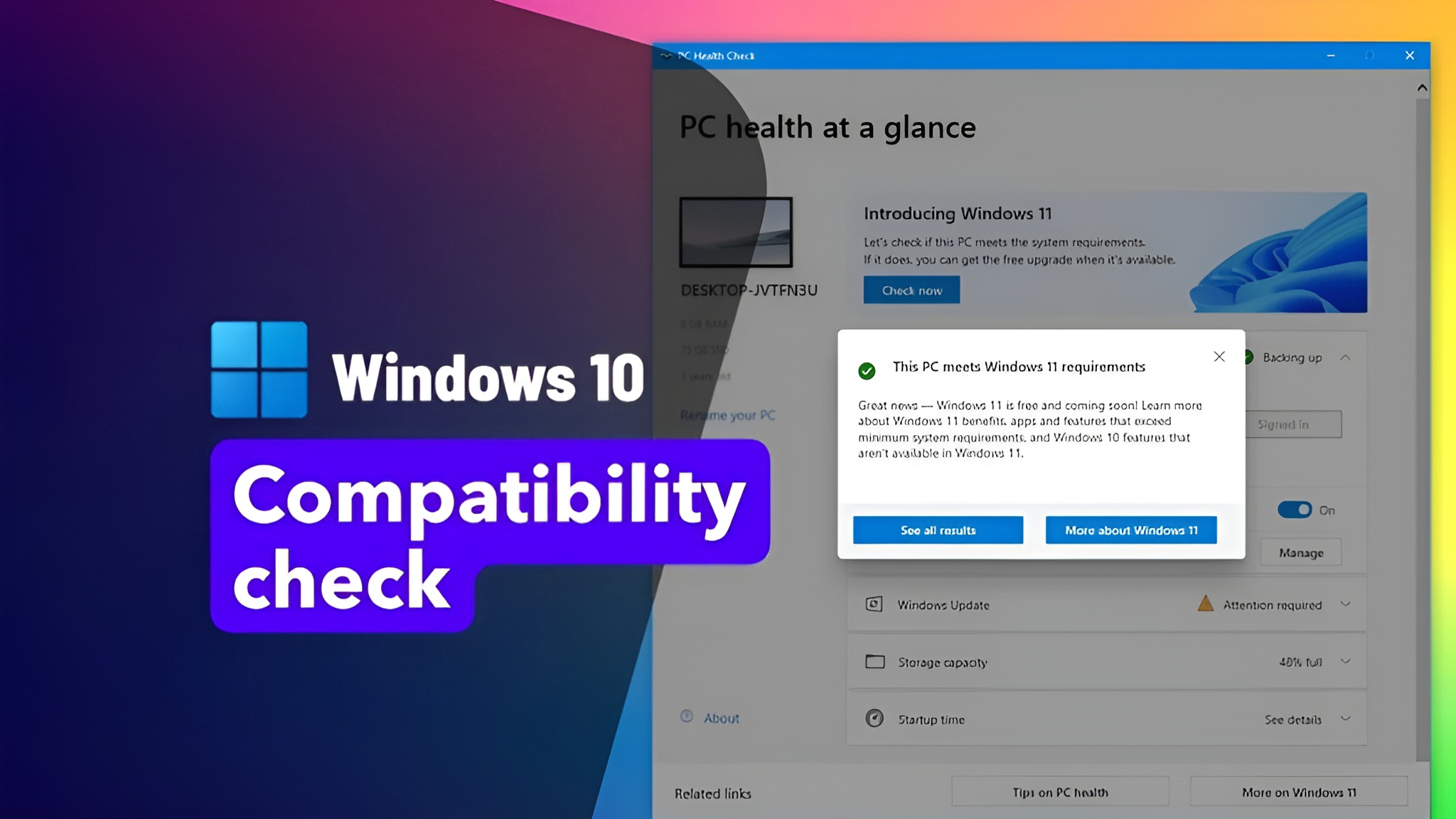
In today’s fast-paced digital environment, keeping your Windows operating system up-to-date is more crucial than ever. Microsoft has streamlined the process with Windows Live Updates, a system designed to automatically fetch, install, and optimize updates for your computer. However, before diving into updates, it’s vital to conduct a compatibility check. This ensures that your system can seamlessly support new features, security patches, and performance enhancements without risking stability or functionality. In this article, we will explore the significance of Windows Live Updates, the step-by-step compatibility check process, and expert tips to maintain a smooth updating experience.
What Are Windows Live Updates?
Windows Live Updates, often referred to as Windows Update, is Microsoft’s centralized service for distributing software updates. These updates may include:
- Security patches to protect against emerging threats.
- Feature updates that introduce new functionalities or refine existing ones.
- Performance enhancements to improve system speed and efficiency.
- Driver updates to ensure hardware compatibility and optimal performance.
The goal of Windows Live Updates is to maintain a secure, efficient, and fully functional Windows environment. However, not every update is universally compatible with all systems, which is why the compatibility check becomes essential.
Why Compatibility Check Matters
A compatibility check ensures your system meets the requirements for upcoming updates. Ignoring this step can result in:
- System crashes – Updates may conflict with existing software, leading to instability.
- Data loss – In rare cases, incompatible updates can disrupt files or applications.
- Performance degradation – Some updates may cause slower system performance if your hardware does not meet the required specifications.
- Software conflicts – Outdated drivers or applications may not work with the latest Windows features.
By performing a compatibility check, users can prevent these issues, ensuring a smoother and safer update process.
How to Perform a Windows Live Updates Compatibility Check
Performing a compatibility check for Windows Live Updates is straightforward. Here’s a comprehensive guide:
1. Check System Requirements
Before initiating any updates, verify that your system meets the minimum requirements for the latest Windows version. This includes:
- Processor – Ensure your CPU is compatible with the update. For newer versions, a 64-bit processor may be required.
- RAM – Check if your system has sufficient memory. Most updates need at least 4GB, while advanced features may require 8GB or more.
- Storage Space – Updates require free disk space. Typically, you should have at least 20GB of available space.
- Graphics Card – Some updates improve visual experiences and need a compatible GPU.
2. Update Windows Version
Ensure your system is running the latest Windows version compatible with updates. Navigate to:
Settings → Update & Security → Windows Update → Check for Updates
If your system is outdated, install prior updates before attempting the latest ones.
3. Check Software Compatibility
Certain applications may conflict with updates. Use the Program Compatibility Troubleshooter:
- Open Control Panel → Programs → Programs and Features.
- Select the application you want to check.
- Click Run Compatibility Troubleshooter.
This tool identifies potential conflicts and offers solutions, such as running the program in a previous Windows mode.
4. Verify Hardware Drivers
Outdated drivers often cause update failures. To check your drivers:
- Press
Win + X→ Device Manager. - Look for any device with a yellow warning icon.
- Right-click → Update driver.
Ensuring updated drivers can prevent compatibility issues with hardware-intensive updates.
5. Run Windows Update Troubleshooter
Windows has a built-in troubleshooter to identify potential issues:
- Go to
Settings → Update & Security → Troubleshoot → Additional troubleshooters → Windows Update. - Click Run the troubleshooter.
This tool automatically detects problems and applies fixes to improve update success rates.
6. Backup Your System
Before installing updates, create a backup of your system using:
- File History – Protect personal files.
- System Restore – Capture the current system state to revert if needed.
Backups ensure that even if an update fails, your data and system remain safe.
Common Compatibility Issues
While Windows Live Updates is designed to work across most systems, compatibility issues can arise. Some common problems include:
- Insufficient Disk Space – Updates may fail if your system does not have enough free space.
- Antivirus Conflicts – Third-party antivirus programs may block updates. Temporarily disabling them can help.
- Outdated Drivers – As mentioned, outdated drivers often prevent updates from installing.
- Unsupported Hardware – Older hardware may not support new Windows features.
- Network Connectivity Issues – Unstable internet connections can interrupt the update process.
Tips to Ensure Smooth Updates
Here are some expert tips to enhance the Windows Live Updates experience:
- Keep Your System Clean – Regularly remove unnecessary files and applications.
- Enable Automatic Updates – This ensures timely security patches.
- Check Manufacturer Websites – For critical hardware, verify driver compatibility with updates.
- Monitor Update Logs – Logs can help identify failed updates and troubleshoot issues.
- Use Stable Internet Connections – Avoid updates over weak or intermittent networks.
Advanced Compatibility Checks
For IT professionals and advanced users, deeper compatibility checks may involve:
- Windows Update Readiness Tool – Scans for issues preventing updates.
- Windows Assessment and Deployment Kit (ADK) – Helps test updates in controlled environments.
- Event Viewer Analysis – Check logs for errors related to previous updates.
These methods provide a more granular understanding of system readiness and potential conflicts.
Benefits of Performing Compatibility Checks
Conducting compatibility checks before applying Windows Live Updates offers multiple benefits:
- Enhanced System Stability – Reduces risk of crashes and errors.
- Improved Security – Ensures that critical patches install correctly.
- Optimized Performance – Updates can improve speed and responsiveness without hindrance.
- Long-Term Hardware Support – Helps maintain driver and software compatibility over time.
Conclusion
Windows Live Updates are an integral part of maintaining a secure, efficient, and high-performing Windows system. However, blindly installing updates can introduce complications, making compatibility checks essential. By verifying system requirements, software, and hardware readiness, users can ensure smooth and successful updates. Remember to also back up your system and utilize troubleshooting tools for any potential issues.
With proper preparation, Windows Live Updates can significantly enhance your computing experience, keeping your system secure, fast, and reliable. Whether you are a casual user or an IT professional, following a thorough compatibility check process will save you time, prevent frustration, and protect your valuable data.