Windows Data Recovery: Recover Lost Files Easily
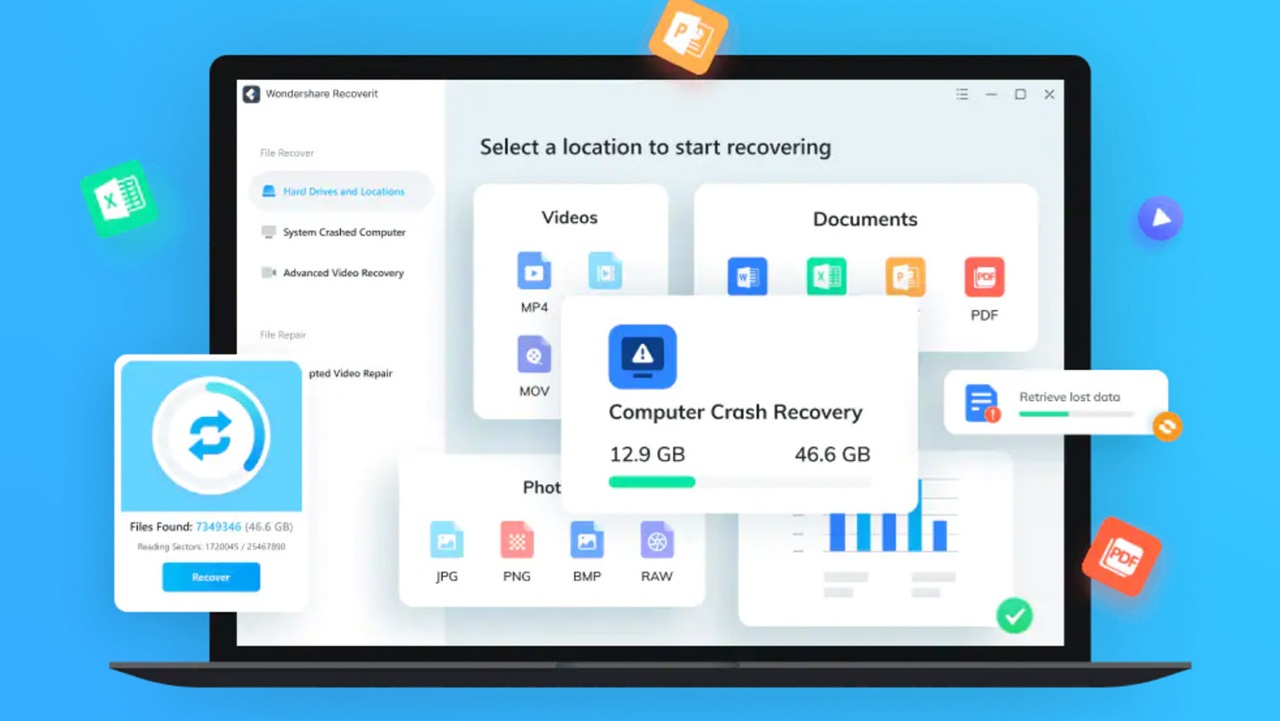
Accidentally deleting important files, suffering a sudden system crash, or falling victim to a virus attack are scenarios every Windows user dreads. Whether it’s treasured family photos, critical work documents, or financial records, losing data can be stressful and costly. This is where Windows data recovery comes in.
In simple terms, data recovery is the process of retrieving lost, deleted, or inaccessible files from your computer’s storage. For individuals, it means peace of mind knowing that mistakes or accidents aren’t necessarily permanent. For businesses, it’s a safeguard against disruptions that could affect operations or compliance.
This guide will explore why data loss happens, how Windows recovery works, and practical methods to restore your files safely. From built-in tools to professional software, we’ll cover strategies to protect your data and ensure that when accidents happen, recovery is just a few clicks away. By the end, you’ll understand how to recover files efficiently and take steps to prevent future data loss.
Common Reasons for Data Loss on Windows
Data loss can happen to anyone, and understanding the causes is the first step toward prevention. Here are some of the most common reasons Windows users lose their files:
Accidental deletion – Mistakenly pressing Delete or formatting the wrong folder happens more often than you think.
Formatting drives or partitions – Reinstalling Windows or reformatting a drive can erase everything stored on it.
Virus or malware attacks – Malicious software can corrupt or encrypt files, making them inaccessible.
System crashes or Blue Screen of Death (BSOD) – Unexpected shutdowns may leave files incomplete or damaged.
Hardware failure – Hard drives, SSDs, and USB drives can fail due to age, overheating, or physical damage.
Corruption of files or storage media – Power outages, bad sectors, or software glitches can corrupt documents, photos, and videos.
Knowing these risks allows you to adopt preventive measures, such as regular backups, antivirus protection, and careful system management. While some causes are unavoidable, being prepared can save hours of frustration and even prevent permanent data loss.
How Windows Data Recovery Works

To understand how Windows data recovery works, it helps to know the basics of file storage. Windows primarily uses file systems like NTFS, FAT32, and exFAT to organize and manage data. When you delete a file, it isn’t immediately erased from the drive; instead, the system marks the space as available for new data. This is why deleted files can often be recovered if they haven’t been overwritten.
Data loss can be logical or physical:
Logical loss occurs when files are accidentally deleted, corrupted, or affected by malware, but the storage device itself is functional.
Physical loss happens when the hardware fails, such as a damaged hard drive or SSD.
Recovery software plays a crucial role in scanning the storage media, identifying recoverable files, and restoring them to safety. Advanced algorithms can piece together fragments of lost data, making it possible to recover files even after system crashes or partial corruption.
Understanding these principles empowers you to choose the right recovery method, avoid overwriting valuable data, and maximize the chances of a successful restoration.
Top Methods to Recover Data on Windows
Windows offers several ways to recover lost data, each with its own advantages and limitations. Here’s a practical overview:
Built-in Windows Tools
Recycle Bin: The first stop for accidentally deleted files. Simply right-click and restore.
File History: Automatically backs up documents and media if enabled. Restore previous versions with a few clicks.
Previous Versions: Right-click a folder or file > Properties > Previous Versions to recover older copies.
Pros: Free and easy to use.
Cons: Only works if backups or history features were enabled before data loss.
Windows Backup & Restore
Accessed via Control Panel, this tool lets you restore files from previous system backups.
Pros: Reliable for full-system or file-specific recovery.
Cons: Requires that backups exist; setup can be technical for beginners.
Data Recovery Software
Popular tools (without direct links) include EaseUS, Recuva, and Disk Drill. These programs scan drives for deleted or lost files and allow selective recovery.
Pros: Can recover files even after formatting or malware attacks.
Cons: Some advanced features require paid versions.
Command-line Methods
CHKDSK: Checks disk integrity and repairs logical errors.
PowerShell/CMD scripts: Can automate file restoration or recovery in specific scenarios.
Pros: Powerful for experienced users.
Cons: Risky if used incorrectly; may require technical knowledge.
By understanding these methods, users can choose the best approach based on their situation, whether it’s a simple accidental deletion or a complex system failure.
Step-by-Step Guide to Using Data Recovery Software
Recovering data efficiently often requires software. Follow these steps for a safe and effective process:
Choose the right tool – Look for compatibility with Windows version, file system support, and user reviews.
Install safely – Always install on a different drive than the one with lost data to avoid overwriting files.
Scan your drives – Use quick scan for recent deletions and deep scan for lost or formatted files.
Preview files – Most software allows previewing before recovery, ensuring you restore only what’s needed.
Recover files – Save recovered files to a different location or external drive.
Post-recovery best practices – Back up recovered files, update antivirus software, and regularly check drive health.
Following these steps minimizes the risk of permanent data loss and ensures you can restore files safely and effectively.
Tips to Prevent Future Data Loss
Prevention is always better than recovery. Implement these measures to safeguard your data:
Regular backups – Schedule automated backups to external drives or NAS devices.
Cloud storage solutions – Services like OneDrive or Google Drive provide redundancy and remote access.
Antivirus and system protection – Keep software updated and perform regular scans.
Safe ejection of external drives – Avoid unplugging devices without proper disconnection to prevent corruption.
Avoid common mistakes – Double-check before formatting or deleting files.
Proactive habits reduce the stress of data loss and make recovery easier if problems do occur.
Advanced Windows Data Recovery Techniques
For complex scenarios, these advanced methods can help:
Recovering from corrupted partitions – Specialized software can rebuild partition tables.
Professional recovery services – For physically damaged drives, experts can extract data using clean-room equipment.
Data recovery from SSD vs HDD – SSDs are faster but often trickier to recover due to TRIM; HDD recovery is generally more straightforward.
Understanding these options ensures you know when to attempt recovery yourself and when to seek professional help.
FAQs on Windows Data Recovery
Q1: Can I recover permanently deleted files?
Yes, if they haven’t been overwritten, recovery software can often restore them.
Q2: Is data recovery safe for my system?
Most modern recovery tools are safe if installed on a separate drive and used correctly.
Q3: How long does recovery take?
It depends on file size, drive health, and scan depth; deep scans can take several hours.
Q4: Can AI tools help in data recovery?
AI-assisted software can improve file reconstruction, detect corruption patterns, and enhance recovery success rates.
This FAQ section is designed to address common concerns quickly, improving user experience and search visibility.
Conclusion – Stay Prepared for Data Loss
Data loss can strike unexpectedly, but being prepared makes recovery manageable. By understanding the causes of data loss, using Windows tools and recovery software effectively, and adopting preventive measures like regular backups and antivirus protection, users can safeguard their files against most threats.
Remember, the key to data security is proactivity. Learn how to optimize your Windows system, implement backup plans, and act quickly when accidents happen. With these strategies, you can recover lost files confidently and prevent future headaches.
Learn more about Windows optimization and data safety to keep your files secure and your system running smoothly.