Windows Data Recovery Guide for 2026
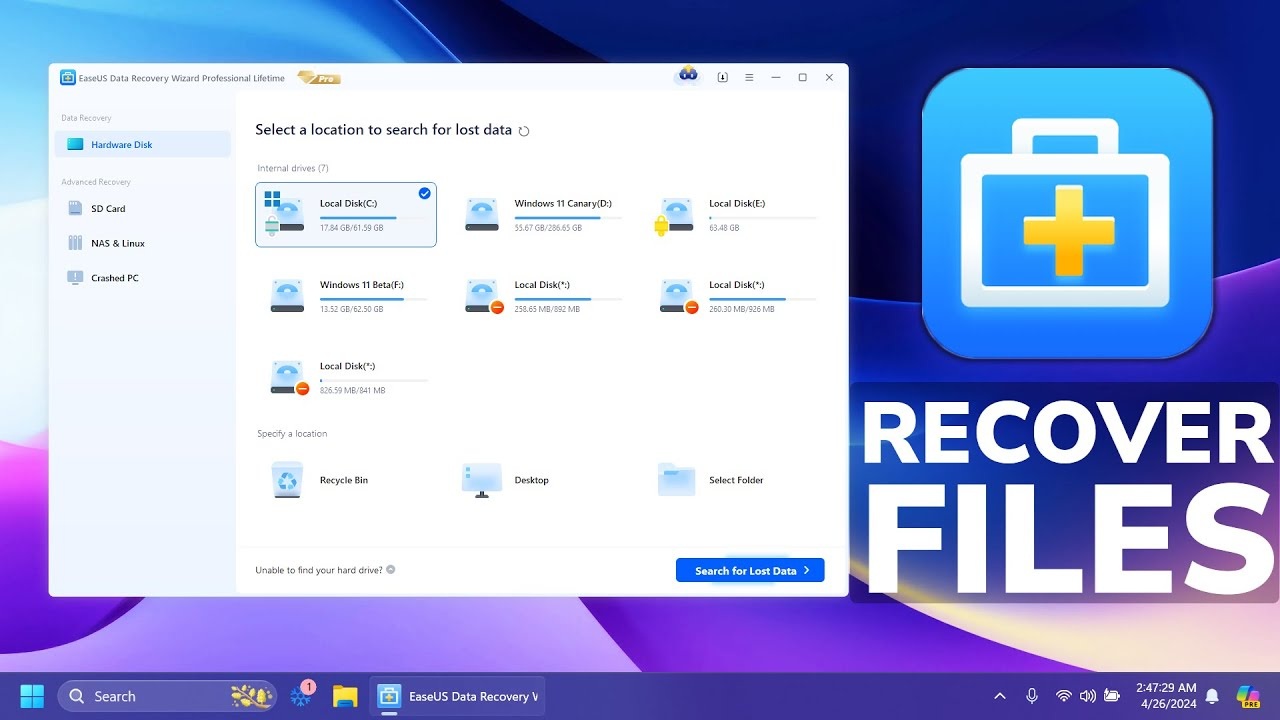
Windows Data Recovery is the process of restoring deleted, lost, formatted, or inaccessible files from a Windows computer. It applies to both Windows 10 and Windows 11 systems and can involve built in tools, backup features, or specialized recovery software.
Data loss happens more often than most people expect. A mistaken Shift + Delete command, formatting the wrong drive, a failed Windows update, malware infection, or sudden hard drive failure can wipe out important files within seconds.
The good news is that deleted files are often recoverable if you act quickly and avoid overwriting the drive.
In this guide, you will learn how Windows data recovery works, which built in tools you can use, when third party software makes sense, and when recovery is no longer possible. Whether you lost family photos, business documents, or critical project files, this guide will help you understand your real options.
Common Causes of Data Loss on Windows
Understanding why files disappear helps you respond correctly. Below are the most common causes of data loss on Windows 10 and Windows 11:
Accidental Deletion
You delete a file and later realize you still need it. This is the most common scenario.
Shift + Delete Removal
When you use Shift + Delete, the file bypasses the Recycle Bin entirely. Many users assume it is permanently gone, but recovery is often still possible.
Formatted Drive
Formatting a USB drive, SSD, or HDD removes file references. If you formatted the wrong partition, recovery may still work before data gets overwritten.
Corrupted Hard Drive
Power failures, unsafe removal of drives, or file system corruption can make data inaccessible.
Virus or Malware Attack
Some malware deletes, encrypts, or hides files. Ransomware is especially dangerous because it locks files behind encryption.
Windows Update Failure
Occasionally, major updates cause profile corruption or temporary data disappearance.
SSD or HDD Failure
Mechanical failure in HDDs or electronic issues in SSDs can cause sudden data loss.
Each scenario requires a slightly different recovery approach, which we will cover next.
Can You Recover Deleted Files on Windows?
Yes, in many cases you can recover deleted files on Windows.
When you delete a file, Windows does not immediately erase the data from the disk. Instead, it marks the storage space as available for reuse. The actual file remains on the drive until new data overwrites it.
This period is known as the recovery window.
The most important factor is speed. The longer you continue using the drive, the higher the chance that new data will overwrite the deleted file, making recovery impossible.
If you realize something important is missing, stop using the affected drive immediately and begin recovery steps.
Built in Windows Data Recovery Methods
Before installing third party software, check these built in Windows tools.
4.1 Recycle Bin Recovery
If you deleted a file normally:
Open Recycle Bin from your desktop
Locate the deleted file
Right click the file
Select Restore
The file returns to its original location instantly.
4.2 File History Restore
File History automatically backs up files if enabled.
To check:
Open Settings
Go to Update and Security
Select Backup
Click More options
To restore:
Type Restore your files in the search bar
Open File History
Browse previous versions
Select the file
Click Restore
If File History was never enabled, this method will not work.
4.3 Previous Versions Feature
Windows sometimes creates restore snapshots.
Right click the folder where the file existed
Select Properties
Open the Previous Versions tab
Choose an available version
Click Restore
This works only if System Protection was enabled.
4.4 Windows File Recovery Tool
Microsoft provides a command line tool called Windows File Recovery, available from the Microsoft Store.
Use it when:
Files were permanently deleted
Drive was formatted
Recycle Bin is empty
Basic usage example:
winfr source-drive: destination-drive: /mode /switches
It requires some technical comfort, but it is powerful and completely free.
How Windows Data Recovery Actually Works
Most Windows systems use the NTFS file system.
When you delete a file, NTFS removes its reference from the Master File Table. The file data remains stored in disk sectors until overwritten.
Recovery software scans the drive sector by sector looking for:
File signatures
Metadata fragments
Directory remnants
If the data sectors remain untouched, recovery is possible.
Overwriting is the biggest enemy of data recovery. Once new data replaces the original sectors, the file cannot be reconstructed.
This is why stopping disk activity is critical.
Best Windows Data Recovery Software: What to Look For
Instead of focusing on brand names, focus on features that matter:
Deep Scan Capability
Allows scanning beyond basic file tables.
File Preview
Lets you verify recoverable files before restoring them.
SSD Support
Important for modern laptops and desktops.
RAW Partition Recovery
Useful when the drive appears unformatted or corrupted.
Read Only Mode
Prevents further damage to the original disk.
Examples of commonly used tools include Recuva, EaseUS Data Recovery Wizard, Stellar Data Recovery, and Disk Drill. Each has strengths and limitations.
Choose software based on your scenario rather than marketing promises.
Windows 10 vs Windows 11 Data Recovery Differences
Data recovery principles remain the same in Windows 10 and Windows 11.
However:
Windows 11 has a more modern interface for backup settings
Windows File Recovery works on both systems
BitLocker encryption is more widely used in Windows 11
If BitLocker is enabled, recovery requires the encryption key. Without it, files cannot be accessed even if physically recoverable.
How to Recover Permanently Deleted Files on Windows
Follow these steps carefully:
Stop using the affected drive immediately
Do not install recovery software on the same drive
Use a separate external drive for installation and recovery storage
Run a deep scan
Preview recoverable files
Restore files to an external drive, not the original disk
Avoid shortcuts. Many recovery failures happen because users accidentally overwrite the data they are trying to save.
Patience improves success rates.
Hard Drive and SSD Data Recovery on Windows
HDD Recovery
Traditional hard drives store data magnetically. Deleted files often remain recoverable unless overwritten.
SSD Recovery
SSDs use TRIM technology, which automatically clears deleted data blocks to improve performance.
Because of TRIM, SSD recovery can be more difficult and sometimes impossible.
If the drive makes unusual noises or is not detected at all, professional recovery services may be required.
When Data Recovery Is Not Possible
Recovery is unlikely when:
Data has been overwritten
The drive suffered severe physical damage
The drive was securely erased
BitLocker encrypted data without a recovery key
Being honest about limitations builds realistic expectations.
How to Prevent Data Loss in Windows
Prevention is easier than recovery.
Enable File History
Use OneDrive automatic backup
Create external drive backups regularly
Enable System Restore
Check disk health using built in diagnostic tools
A simple weekly backup routine can save months of stress.
Frequently Asked Questions
How do I recover deleted files in Windows 10?
Check the Recycle Bin first. If the file is not there, use File History, Previous Versions, or Windows File Recovery. If those options fail, consider third party recovery software. Act quickly to avoid overwriting the data.
Is Windows File Recovery safe?
Yes. It is developed by Microsoft and operates in read only mode. It does not modify the source drive during scanning.
Can permanently deleted files be recovered?
In many cases yes, as long as the data has not been overwritten. SSD drives may reduce recovery chances due to TRIM.
How long does data recovery take?
It depends on drive size and damage level. A quick scan may take minutes. Deep scans can take several hours.
Is free recovery software reliable?
Some free tools work well for simple deletions. Complex scenarios may require advanced software.
Can I recover data after formatting?
Yes, if the drive has not been overwritten. A deep scan is usually required.
Conclusion
Windows Data Recovery is often possible, but timing is everything. Whether you use built in tools like Recycle Bin and File History or advanced recovery software, acting quickly improves your chances.
Understanding how deletion works, how NTFS stores data, and how overwriting affects recovery helps you make better decisions during a stressful situation.
If you have lost important files, stop using the drive and begin recovery immediately.
And once your data is restored, set up a reliable backup system. The best recovery strategy is not needing one in the first place.